RODE Caster Pro II Assigning Inputs to Faders
Assigning Inputs to Faders
There are multiple ways to change the mixer configuration. This can either be done during the Setup Wizard process, or via the fader set-up screen or the channel set-up screen.
To access the channel set-up screen for a fader, simply tap the button above the fader or the icon below the level meter, then tap the settings cog to access the channel assignment screen.
Here you can select what input is assigned to that channel, unassign inputs, link stereo inputs and change the colour-coding of the channel. Once you have configured the channel, tap the green tick icon to save the settings. Repeat the process for the other faders you want to assign inputs to.
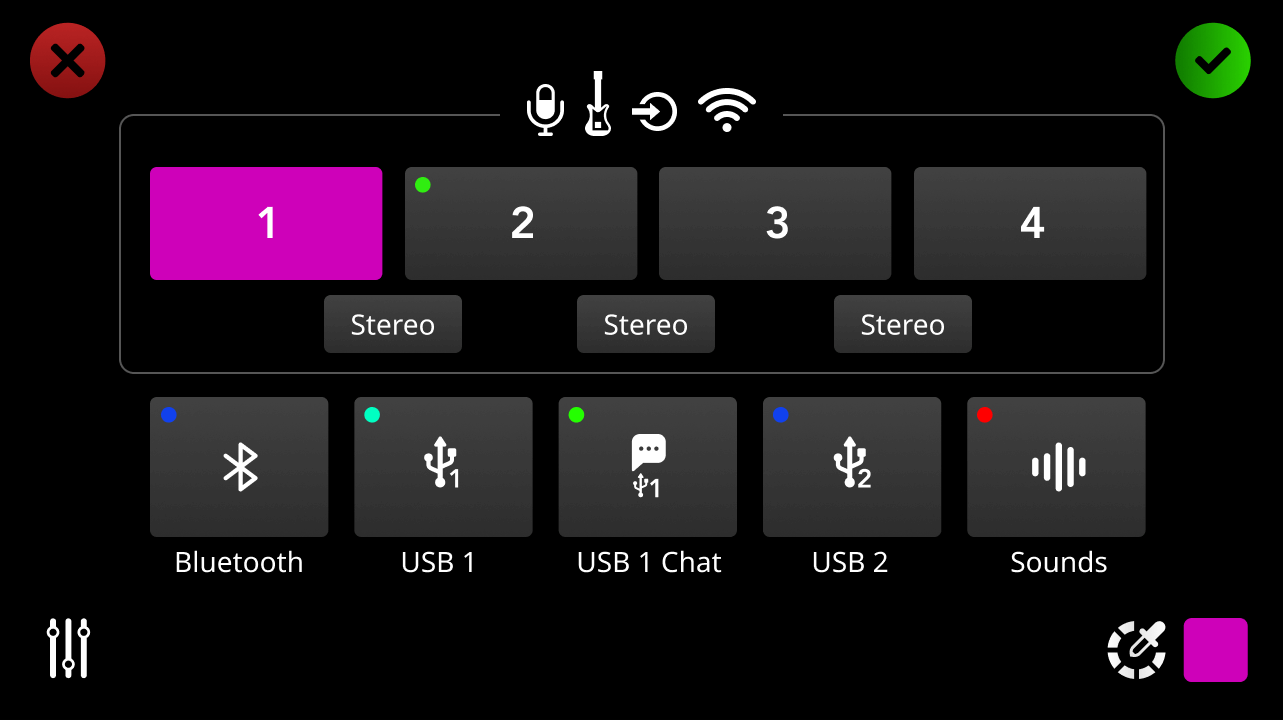
To access the fader set-up screen, tap the settings cog, then ‘Faders’ (or tap the fader icon on the bottom left corner of the channel set-up screen).
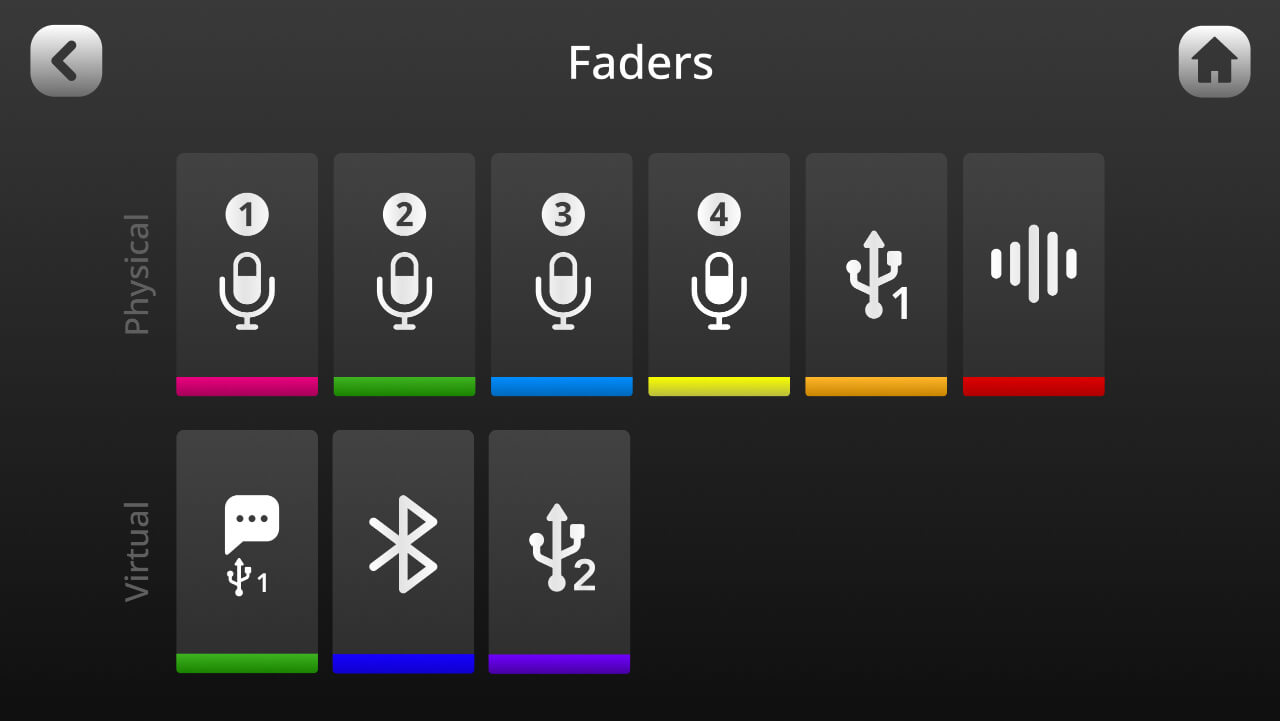
Here you can assign channels to the physical and virtual faders by dragging and dropping their icons to the desired location using the touchscreen.
This is a quick and easy way to change the configuration of the mixer. You can also tap a fader icon to access the channel assignment screen.
There are multiple ways to change the mixer configuration. This can either be done during the Setup Wizard process, or via the fader set-up screen or the channel set-up screen.
To access the channel set-up screen for a fader, simply tap the button above the fader or the icon below the level meter, then tap the settings cog to access the channel assignment screen.
Here you can select what input is assigned to that channel, unassign inputs, link stereo inputs and change the colour-coding of the channel. Once you have configured the channel, tap the green tick icon to save the settings. Repeat the process for the other faders you want to assign inputs to.
To access the fader set-up screen, tap the settings cog, then ‘Faders’ (or tap the fader icon on the bottom left corner of the channel set-up screen).
Here you can assign channels to the physical and virtual faders by dragging and dropping their icons to the desired location using the touchscreen.
This is a quick and easy way to change the configuration of the mixer. You can also tap a fader icon to access the channel assignment screen.
Pino Roots & The Midnite Blues © 2026 | Music Lab Learning & Self-Study Archive!


Comentarios
Publicar un comentario