RODE Caster Pro II Audio Setup
Audio Setup
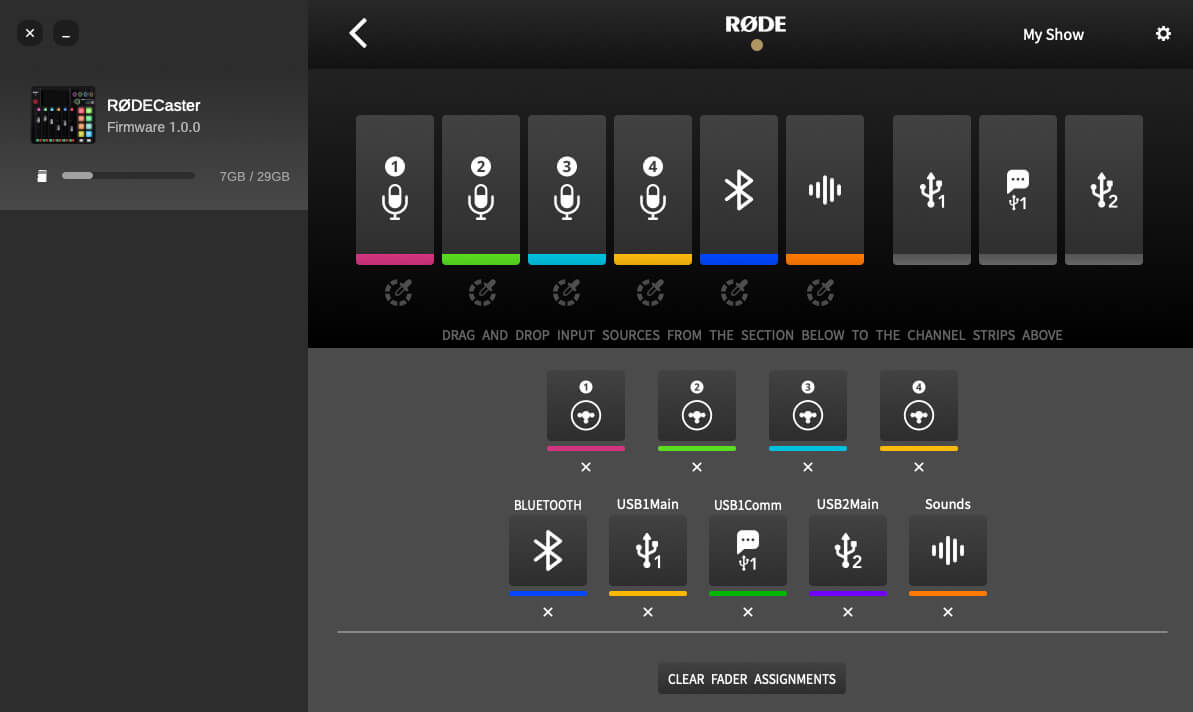
‘Audio Setup’ allows you assign channels to your faders using an easy drag-and-drop interface. The physical faders are represented by the six icons on the top left; the virtual faders are represented by the three icons on the top right.
The nine audio channels can be found below, with the four analog inputs on the top row and the Bluetooth, USB and SMART pads on the bottom row. Simply drag-and-drop the input sources to assign them to a fader. You can also change to channel colours, unassign inputs from a fader, stereo link channels, and clear all fader assignments from this page.
‘Audio Setup’ allows you assign channels to your faders using an easy drag-and-drop interface. The physical faders are represented by the six icons on the top left; the virtual faders are represented by the three icons on the top right.
The nine audio channels can be found below, with the four analog inputs on the top row and the Bluetooth, USB and SMART pads on the bottom row. Simply drag-and-drop the input sources to assign them to a fader. You can also change to channel colours, unassign inputs from a fader, stereo link channels, and clear all fader assignments from this page.
Pino Roots & The Midnite Blues © 2026 | Music Lab Learning & Self-Study Archive!


Comentarios
Publicar un comentario