RODE Caster Pro II How to Revert Back to Stable Firmware
How to Revert Back to Stable Firmware
To revert back to stable firmware, you will need to factory reset your device using the latest version of RØDE Central using the steps below:
Download RØDE Central (if you have not done so already)
Open RØDE Central and connect your RØDECaster Pro II to your computer via USB
Your RØDECaster Pro II should appear on the left column among other RØDE Central compatible devices. Click it.
Click the settings cog in the top right of the window, then click the ‘Factory Reset’ option. You will be prompted to disconnect all RØDE devices from your computer. Disconnect, then reconnect and turn on your RØDECaster Pro II.
After rebooting your RØDECaster Pro II, you will be able to click 'Factory Reset'. This will reinstall the latest firmware to your device.
If you have any issues reverting back to stable firmware, please contact service@rode.com
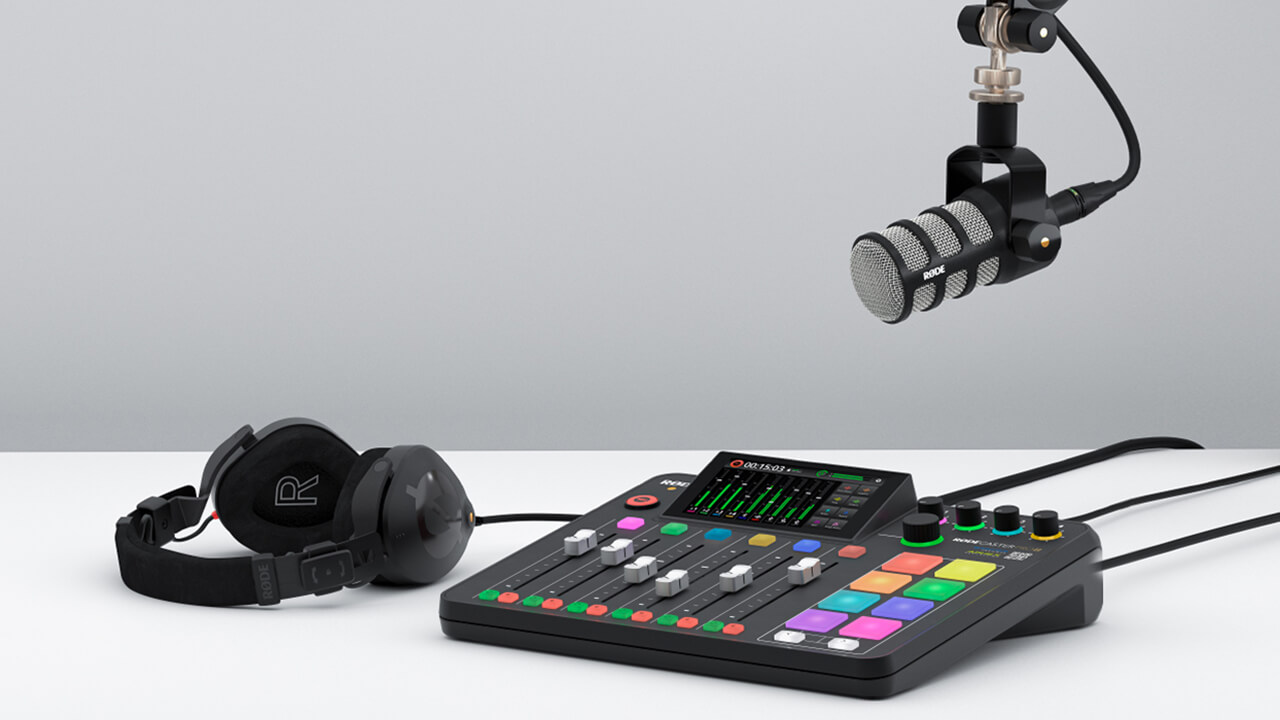
To revert back to stable firmware, you will need to factory reset your device using the latest version of RØDE Central using the steps below:
Download RØDE Central (if you have not done so already)
Open RØDE Central and connect your RØDECaster Pro II to your computer via USB
Your RØDECaster Pro II should appear on the left column among other RØDE Central compatible devices. Click it.
Click the settings cog in the top right of the window, then click the ‘Factory Reset’ option. You will be prompted to disconnect all RØDE devices from your computer. Disconnect, then reconnect and turn on your RØDECaster Pro II.
After rebooting your RØDECaster Pro II, you will be able to click 'Factory Reset'. This will reinstall the latest firmware to your device.
If you have any issues reverting back to stable firmware, please contact service@rode.com
Pino Roots & The Midnite Blues © 2026 | Music Lab Learning & Self-Study Archive!


Comentarios
Publicar un comentario