RODE Caster Pro II Transfer Recordings
Transfer Recordings
To transfer recordings saved on an external microSD to your computer, click ‘Transfer Recordings’. You will then be prompted to place your RØDECaster Pro II into ‘Transfer Mode’. Click ‘Continue’ to proceed.
Your recordings will be listed below from latest to earliest. You can change the order from the drop-down menu. Once a recording has been selected, you will be able to play back the audio. Click the arrow and marker buttons to skip through the audio file. There is a mini-nav bar above the main waveform. Use this to quickly navigate through longer recordings. You can also use the magnifying glass icons in the top right corner to zoom in and out of your recording.
To trim a recording, click and drag the start and end markers to the desired location (both the real-time and elapsed recording time can be found under the waveform).
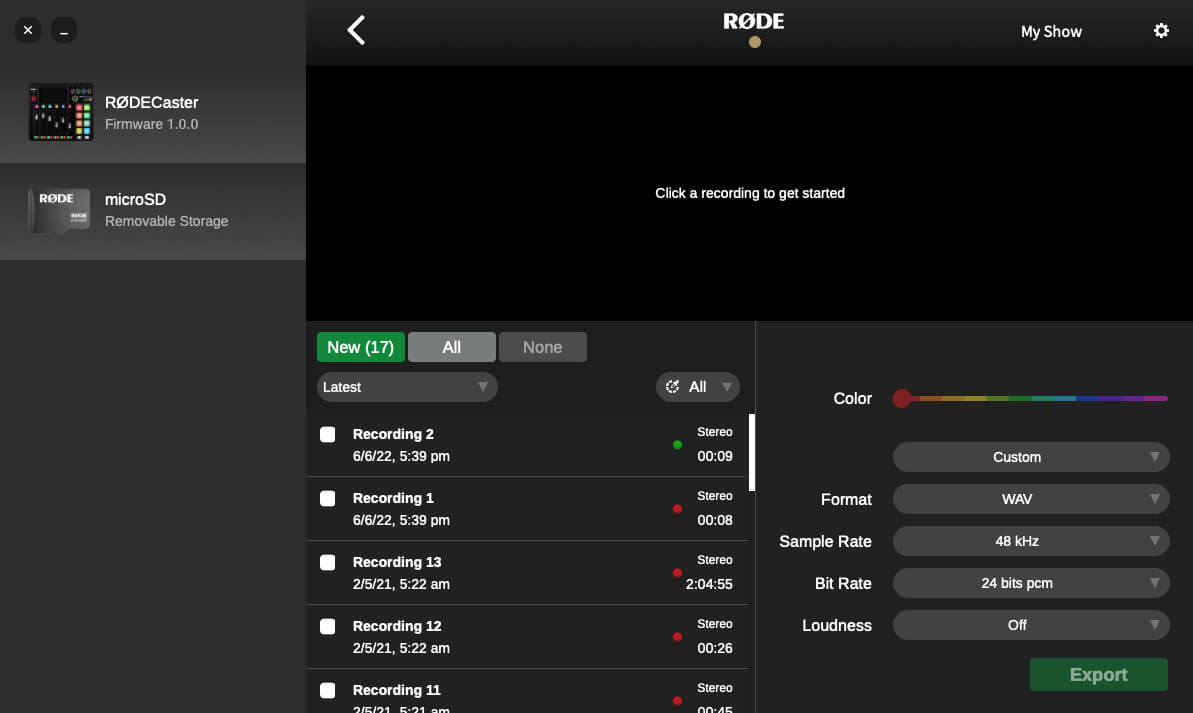
To transfer recordings saved on an external microSD to your computer, click ‘Transfer Recordings’. You will then be prompted to place your RØDECaster Pro II into ‘Transfer Mode’. Click ‘Continue’ to proceed.
Your recordings will be listed below from latest to earliest. You can change the order from the drop-down menu. Once a recording has been selected, you will be able to play back the audio. Click the arrow and marker buttons to skip through the audio file. There is a mini-nav bar above the main waveform. Use this to quickly navigate through longer recordings. You can also use the magnifying glass icons in the top right corner to zoom in and out of your recording.
To trim a recording, click and drag the start and end markers to the desired location (both the real-time and elapsed recording time can be found under the waveform).
Pino Roots & The Midnite Blues © 2026 | Music Lab Learning & Self-Study Archive!


Comentarios
Publicar un comentario