RODE Caster Pro IIUsing the Listen Buttons
Using the Listen Buttons
The green button under each of the RØDECaster Pro II's physical faders is a “listen” button (also known as a solo button).
This allows you to monitor the audio from a channel by itself, without the rest of the audio mix. You can also access this feature for the three virtual channels by tapping the level meter then tapping the ear icon.
There are two different listen button modes: ‘After-fader Listen’ and ‘Pre-fader Listen’.
To switch between these, go to settings, then ‘Outputs’ > ‘Listen’. ‘After-fader Listen’: When ‘Listen’ is engaged, the host/producer on headphone channel 1 will hear the channel at the fader level.
‘Pre-fader Listen’: When ‘Listen’ is engaged, the host/producer on headphone channel 1 will hear the channel at unity gain, regardless of the fader position.
The green button under each of the RØDECaster Pro II's physical faders is a “listen” button (also known as a solo button).
This allows you to monitor the audio from a channel by itself, without the rest of the audio mix. You can also access this feature for the three virtual channels by tapping the level meter then tapping the ear icon.
There are two different listen button modes: ‘After-fader Listen’ and ‘Pre-fader Listen’.
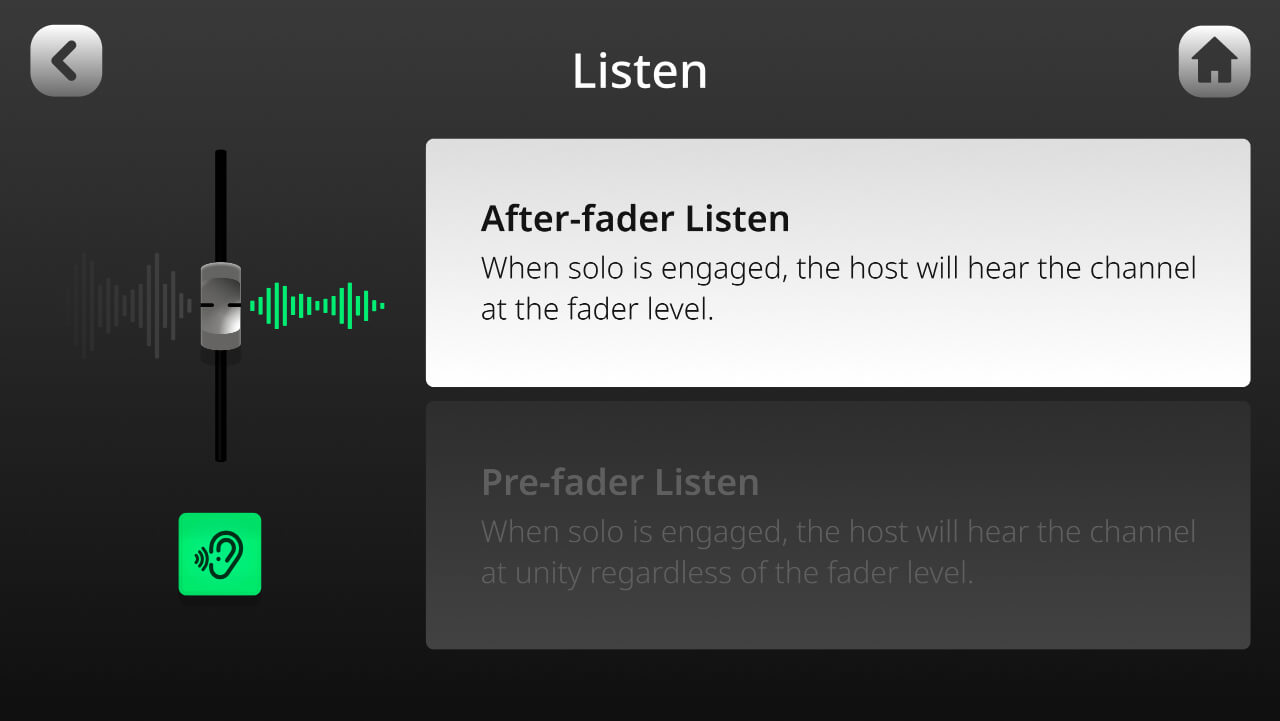
To switch between these, go to settings, then ‘Outputs’ > ‘Listen’. ‘After-fader Listen’: When ‘Listen’ is engaged, the host/producer on headphone channel 1 will hear the channel at the fader level.
‘Pre-fader Listen’: When ‘Listen’ is engaged, the host/producer on headphone channel 1 will hear the channel at unity gain, regardless of the fader position.
Pino Roots & The Midnite Blues © 2026 | Music Lab Learning & Self-Study Archive!


Comentarios
Publicar un comentario